- New
![Live View Camera for A1 [CAM004]](https://dev.marvle3d.co.nz/17363-large_default/live-view-camera-for-a1-cam004-.jpg "Live View Camera for A1 [CAM004]")
![Live View Camera for A1 [CAM004]](https://dev.marvle3d.co.nz/17363-medium_default/live-view-camera-for-a1-cam004-.jpg "Live View Camera for A1 [CAM004]")
![Live View Camera for A1 [CAM004]](https://dev.marvle3d.co.nz/17364-medium_default/live-view-camera-for-a1-cam004-.jpg "Live View Camera for A1 [CAM004]")


228 Bush Road, Rosedale | Mon–Sat 9:30–4:30

Auckland Local Stock
Authorized NZ Distributor – Marvle3D
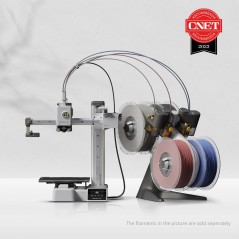
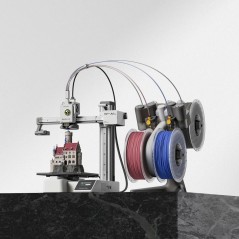
*Live View Camera for A1 [CAM004]
-Enables remote livestream monitoring
-Supports automatic time-lapse recording
-Low-FPS camera included by default
-Provides real-time print progress viewing
-Designed as a direct replacement part
Compatible Printers: Bambu Lab A1
Why Marvle3D?
Marvle3D—New Zealand’s expert since 2016, offering friendly support, in-store demos, and one of the country’s largest ranges.
 Security policy(edit with the Customer Reassurance module)
 Delivery policy(edit with the Customer Reassurance module)
 Return policy(edit with the Customer Reassurance module)
Remove the A1 Live View Camera
Step 1:Remove the motor cover
Simply pull from the right side of the front cover towards you to remove the motor cover.
Step 2:Remove the live view camera
Refer to the picture below and push the camera hard from the bottom to rotate it to a certain angle, then disconnect the camera cable and remove the camera;
Install the A1 Live View Camera
Step 1: Install the new live view camera
Connect the new camera with the camera cable and mount the camera to the motor cover.
Step 2:Reinstall the motor cover
To reinstall the motor cover, you can simply push it back in place until you hear the clips “clicking” in place.
How to replace the camera including the cable (optional)
If the problem was not resolved by simply replacing the Live View Camera, you might need to also replace the cable.
To do so, carefully read the A1 USB-C cable replacement guide and follow the same procedure to remove the camera cable from the wire loom.
Specific References
No customer reviews for the moment.
![Live View Camera for A1 [CAM004]](https://dev.marvle3d.co.nz/17364-large_default/live-view-camera-for-a1-cam004-.jpg "Live View Camera for A1 [CAM004]")
Auckland Local Stock
Authorized NZ Distributor – Marvle3D
*Live View Camera for A1 [CAM004]
-Enables remote livestream monitoring
-Supports automatic time-lapse recording
-Low-FPS camera included by default
-Provides real-time print progress viewing
-Designed as a direct replacement part
Compatible Printers: Bambu Lab A1
Why Marvle3D?
Marvle3D—New Zealand’s expert since 2016, offering friendly support, in-store demos, and one of the country’s largest ranges.
![AC Board for A1 [DLB021 or DLB021-V2]](https://dev.marvle3d.co.nz/16639-home_default/bambu-lab-part-filament-buffer-for-p2s.jpg)
![AC Board for A1 [DLB021 or DLB021-V2]](https://dev.marvle3d.co.nz/16640-home_default/bambu-lab-part-filament-buffer-for-p2s.jpg)
![AMS 2 Pro Hub for A1 [SA013]](https://dev.marvle3d.co.nz/16332-home_default/bambu-lab-part-a1-mini-ams-hub-for-ams-2-pro.jpg)
![AMS 2 Pro Hub for A1 [SA013]](https://dev.marvle3d.co.nz/16333-home_default/bambu-lab-part-a1-mini-ams-hub-for-ams-2-pro.jpg)